

.png) 1 month ago
59
1 month ago
59
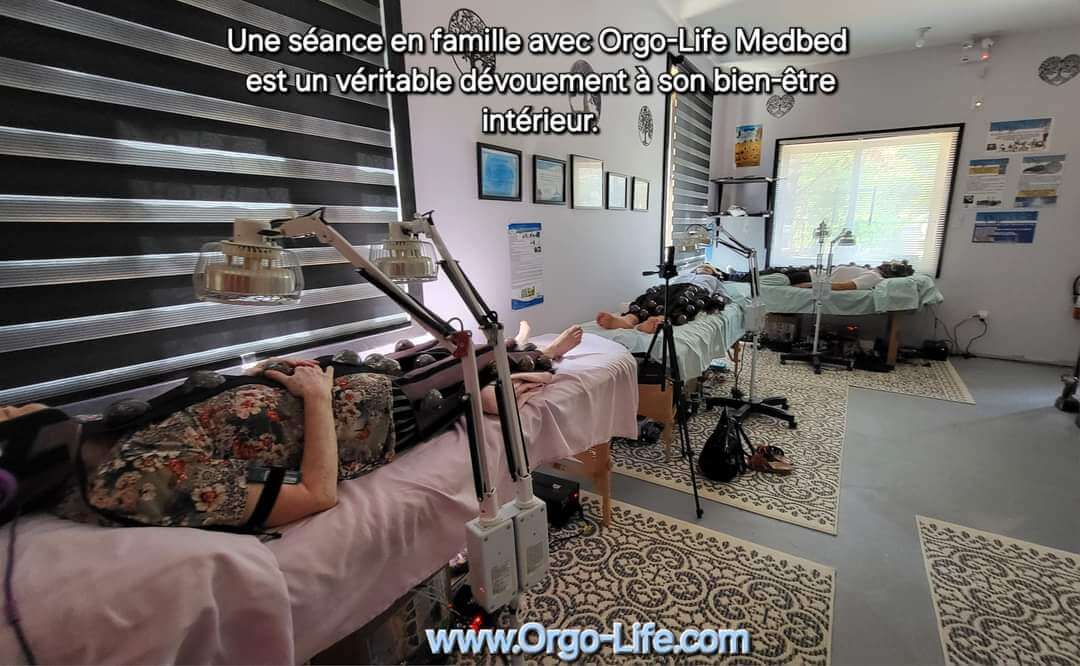
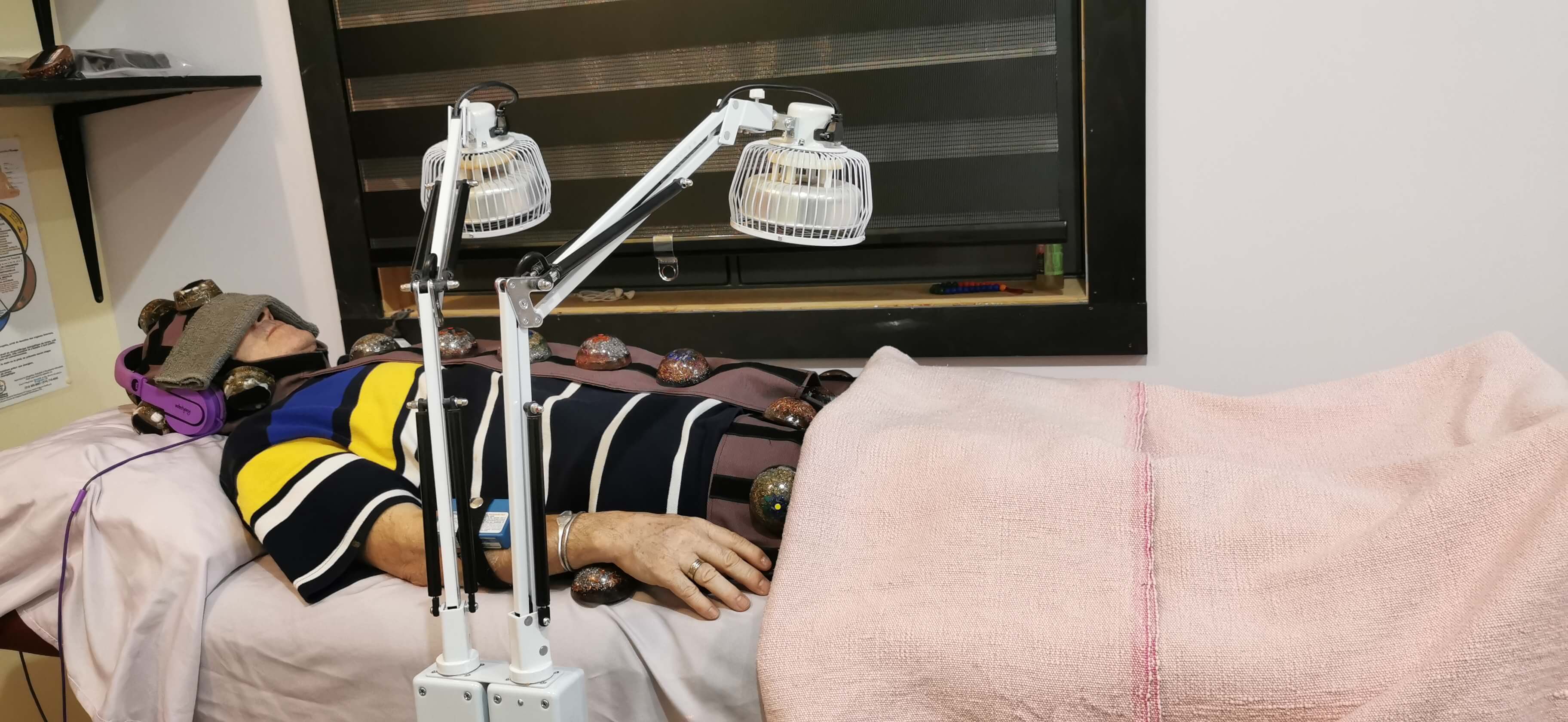
PROTECT YOUR DNA WITH QUANTUM TECHNOLOGY
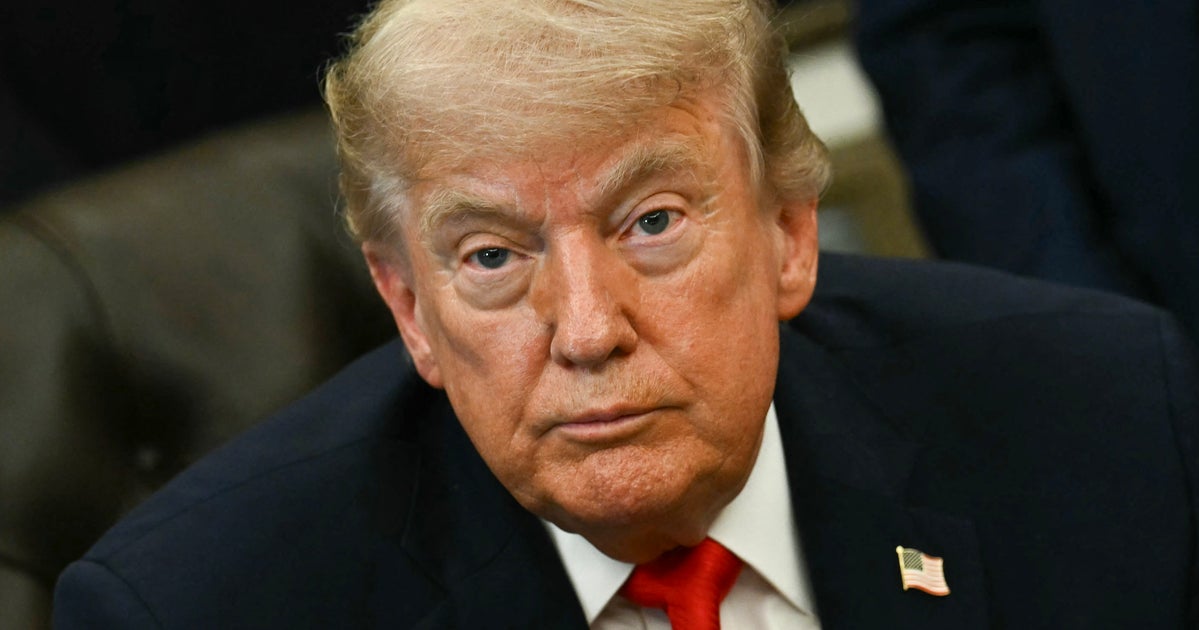
Orgo-Life the new way to the future Advertising by AdpathwayThis week, President Donald Trump shared that he has misspelled his wife Melania’s name as “Melody” on social media due to the autocorrect on “these crazy machines that we use.”
During a May event honoring military mothers, Trump noted that an attendee was named Melody, and shared his own personal connection to the name: “I love the name Melody because, for a long time, you know, they have spell correct and word correct on these crazy machines that we use to put out Truths, or, they used to be called, tweets,” he began.
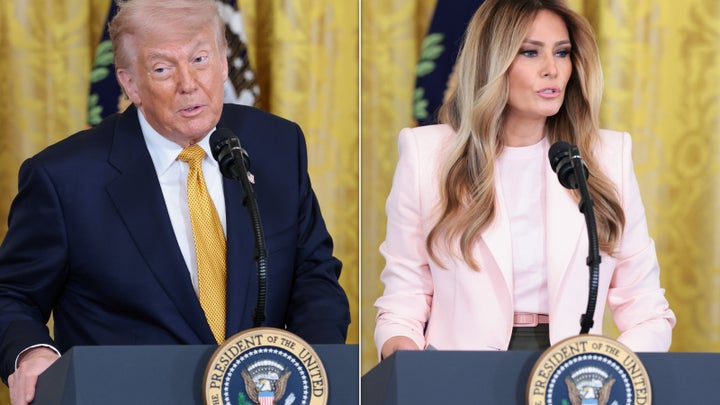
Getty
Trump claimed that “every time I wrote ‘Melania,’ it would correct to ‘Melody.’”
“She’s been called ‘Melody’ a lot,” Trump claimed. “I apologize.”
This is not the first time this spelling mistake has apparently happened. Trump once referred to Melania as Melanie in a 2018 post about her hospitalization.
Trump then told the audience that these repeated autocorrect errors led him to ask, “What the hell is wrong with this machine?”
Although it’s unclear which kind of device Trump is referring to, there’s a known explanation for why smartphones’ autocorrect features generally do this, even for phrases and names we commonly say.
Smartphones learn how we type and adapt to the vocabulary they see us use to send messages to friends and read on sites we visit. In iPhones, there is a known dynamic dictionary that adapts to our unique vocabulary.
“As you type, you can see choices for words and phrases you’d probably type next, based on your past conversations, writing style, and even websites you visit in Safari,” Apple explains on its site.
So the more you mess up one word, the more your iPhone might assume your errors were intentional. This is how, if you keep writing “Melody” in your iPhone messages, your phone may see “Melody” as the only right word.
Trump is just one of many who have complained about keyboard autocorrect features. Many iPhone users claim that iPhone keyboard predictive text has created annoying, embarrassing typos.
Trump said it took the U.S. military to fix his problem. “I said, ‘Come here. You got to correct this,’” he recalled in his speech.
Reset Your Phone’s Autocorrect Or Add Specific Features To Fix This Problem For Good
You don’t need the armed forces to address this common mistake if it happens on your phone’s keyboard — this is an easy fix anyone with a minute to spare can do.
First, make sure you have completed the latest software update on your device. In Apple’s case, updating to iOS 26.4 has fixed users’ complaints about autocorrect typing problems.
One other sure way to avoid the Melody mistake is to teach your phone which shortcuts are appropriate. If you benefit from using autocorrect but hate one embarrassing misspelling the feature does, you can tell your smartphone to only use certain shortcuts. If Trump was using an iPhone, he could have added a text replacement action to make sure “Melody” never appeared in his messages, only “Melania.”
To do this, go to your Settings app, then tap General, then Keyboard, then select Text Replacement. Once you hit the Add button, you can put all the shortcut phrases and the names that should replace them. For example, you can ensure that “Brb” will always become “Be right back” in a text. This way, your iPhone will know that “Mel” must be the beginning letters for Melania, not Melody.
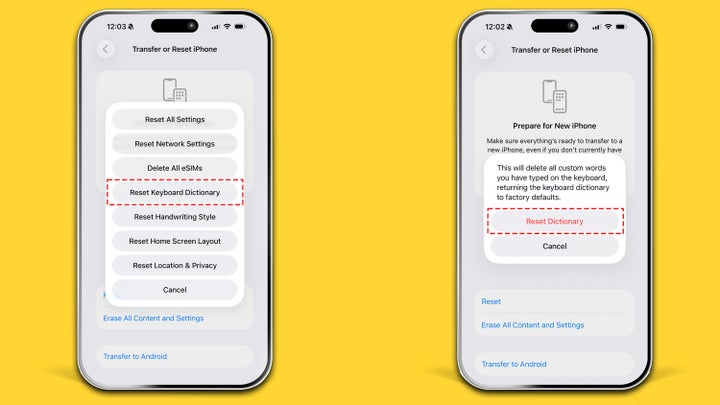
Illustration: HuffPost; Photo: Getty Images
The next option is to reset your phone keyboard entirely and start afresh. To do this, go to Settings, then General, select “Transfer or Reset iPhone,” hit Reset, then “Reset Keyboard Dictionary.” Apple will then share a preview that warns that this action will “delete all custom words you have typed,” which can feel scary, but know that this won’t reboot your phone entirely to factory settings, just your keyboard. Once you do this, your phone will relearn a new dictionary for you that will hopefully not include wrong names.
If you have an iPhone, you can also choose to quit predictive text in your messages entirely and turn auto-correction off in your iPhone. This way, your phone will stop correcting words that aren’t in its keyboard dictionary, such as certain proper names. You can do this by going to the Settings app, tapping General, then Keyboard, then turning off Auto-Correction. Similarly, Android users can also turn off their Gboard keyboard’s autocorrect feature by going into their settings and toggling it off.
Be warned: Our keyboards save us from ourselves, and you’ll quickly learn what grammar quirks your phone has been quietly correcting in the background for you. I’ve tried this and have been shocked at how much punctuation and capitalization my brain cannot do quickly on its own in an age of autocorrect.
Whichever option you choose, know that preventing embarrassing autocorrect mistakes in your phone messages is possible –– and anyone in the White House or at home can learn.




.png)





.jpg)



 English (US) ·
  French (CA) ·